

 Solutions
  Applications
  Industries
  Products
  Contact
  Sign in
| Download: | OMSTools.zip (63 Kb) |
| Download: | makecert.exe (55 Kb) |
| Download: | HttpConfig.exe (17 Kb) |
| Video: |  |
Send SMS from MS Outlook 2010 (part 1/2, configure your modem) |
| Video: | |
Send SMS from MS Outlook 2010 (part 2/2, configure your system) |
Send SMS from MS Outlook 2010 (part 1/2, configure your modem)
Send SMS from MS Outlook 2010 (part 2/2, configure your system)
Solution overview
Efficient communication is an essential demand in companies
dealing with numbers of customers and business partners. They need to keep
contact with these customers and business partners and beside this fact they
need to be well-informed all the time to be competitive. These features can
be achieved by sending SMS text message from an application such as MS Outlook 2010.
It makes efficient communication possible but cannot ensure fast response
options and availability via SMS. For example, if there is no Internet connection in
the office the communication flow will be blocked. Or you cannot be sure that
the recipient of your e-mail message is in front of his computer in the critical
moment.
SMS technology is the solution as it makes it possible
to send messages from Outlook to mobile phones. MS Outlook 2010 has a new
feature among its services and it is called Outlook Mobile Service. To use this
function first you need to install a powerful SMS gateway software on your
computer to ensure SMS functionality. Ozeki NG
SMS Gateway is a software product that is able to meet with these
requirements. With the implementation of this solution you will be able to
forward your incoming e-mail messages or calendar entries from Outlook
as SMS messages to mobile phones and there is a possibility to receive SMS
messages from mobile phones to your computer as e-mail messages.
This solution will help you further improve corporate communication and
ensure continuous availability. In this way you can get your reminder
messages even if your are on the move. You will be up-to-date on all of the
important matters due to SMS technology. Furthermore you can easily inform your
customers and business partners about important dates, meetings, events. So, for
example, it is possible to send them a reminder message about an approaching
meeting. It is due to the fact that you can specify multiple recipients for the
outgoing messages.
With the implementation of this solution you will be able to build an
effective, secure and well-functioning SMS system based on Ozeki NG SMS
Gateway that will help improve corporate communication and ensure continuous
availability. This article will provide you a step by step installation guide
but before you start to build your system, please check the prerequisites of
Ozeki NG SMS Gateway.
Prerequisites for this solution
To implement this solution, you need to connect your system to the
mobile network. For this purpose you can use Internet
connection or a GSM phone/GSM modem attached to your computer (this way you will
have a wireless connection).
The following webpage gives you all the information to decide which solution suits
your requirements best: Internet
based SMS connections vs. GSM modem based (wireless) SMS connections.
You need the following prerequisites, depending on your choice.
Internet based connection:
For connecting your system over the Internet to an SMS service provider, you need the follows:
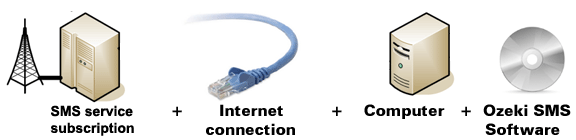
Figure 1/a - IP SMS connection checklist
First of all, you need a service provider, who can reach the mobile phones in your
area and enables you to connect to their SMSC through the Internet. The following
website lists some of them:
SMPP
SMS Service providers. After you have chosen a service
provider, you need to sign up for their service. This will you will get connection
parameters that can be used to configure your Ozeki NG SMS Gateway software.
GSM modem connection:
For a wireless connection, you need a suitable GSM phone/GSM modem that can be attached to your computer with a data cable. This way, Ozeki NG SMS Gateway software will send and receive the SMS messages wirelessly, using the GSM modem. To create this connection, you need the following prerequisites:
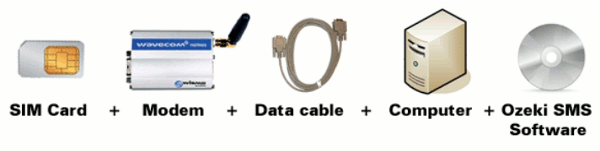
Figure 1/b - GSM modem connection checklist
Please make sure you have the following items to create a GSM modem connection: |
SIM Card - You buy one from your service provider.* |
|
Modem - - Use a Wavecom, Siemens or Multitech modem. |
|
Data cable - Comes with the modem |
|
Computer - Recommended: Intel P4 3Ghz, 2GB RAM, 500MB HDD, Windows OS |
|
Ozeki NG SMS Gateway - Download it from http://www.sms-integration.com |
|
* The cost of an SMS message is determined by the price plan you have chosen when you have purchased the SIM card from your GSM mobile network operator.

| Ozeki NG SMS Gateway can be obtained by opening the download page: Download Ozeki NG SMS Gateway! |
How the SMS system works
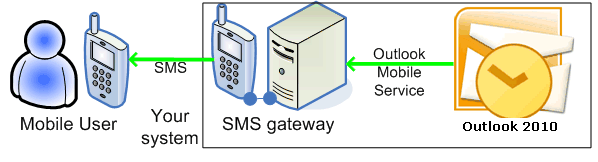
Once you composed a message
in MS Outlook 2010, MS Outlook 2010 connects to Ozeki NG SMS Gateway over
webservice to forward the message to the SMS gateway software.
Then the gateway processes the message and sends out as an SMS message to
predefined mobile phones.
NOTE: In case you use IP SMS connection between your gateway
and the SMS center of a mobile service provider, you can receive a reply to
your message. It is possible because the SMS gateway is able to set the phone
number, which was provided in Outlook, as the phone number of the sender. In
this way you can get the reply to your mobile phone. Figure 2 demonstrates this
process.
|
Figure 2 - MS Outlook 2010 SMS solution with Ozeki NG SMS Gateway
How to configure MS Outlook 2010 SMS solution
Step 1. Create a certificate
Microsoft Outlook 2010 has been designed to be able to send
SMS messages. The name of this function is Outlook Mobile Services (OMS).
It is able to send SMS messages over webservice. To use this SMS functionality
first you need to setup an encrypted channel.
It is required because you can only use OMS over HTTPS (encrypted) channel.
To create an encrypted channel you need a certificate. This certificate can
be self-signed or it can come from an external issuer. You can create a
self-signed certificate with the use of
makecert program. So at first create a main self-signed certificate and
then create a certificate for the encryption of the connection. It needs to
be signed with the certificate which was created at first.
In practice you need to do the follows:
go to Start menu and select Command Prompt (All program/Accessories/Command
Prompt). Now go to the directory of OMS Tools (Figure 3). You also need to
download and extract the following program:
OMSTools.zip
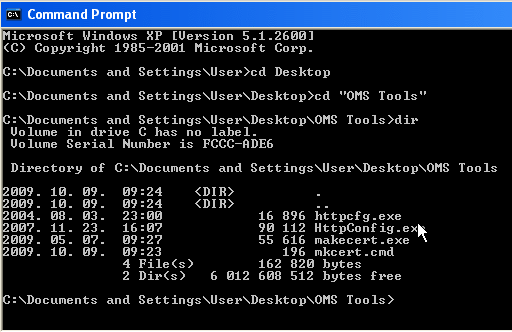 |
Figure 3 - OMS Tools directory
If you create a self-signed certificate, type into Command Prompt the follows to get your IP address:
ipconfig |
To create a self-signed certificate you need mkcert script. Type one of the following commands into Command Prompt:
mkcert <IP address> |
or
mkcert <FQDN> |
This will be signed by the certificate that has been created
at first where "Server" is the name of the server on which Ozeki NG SMS Gateway
will run.
If it is done close Command Prompt with "exit" command.
If you have created the certificates, you need to set them. You
can do this with the use of HttpConfig.exe
Now start HTTPConfig utility and bind your certificate to a port. You can do
this if you select "SSL" tab in HTTPConfig program and click on "Add".
A window appears, type your IP address into "IP Address" field. Then into "Port"
field type the port number on which you wish to provide OMS with Ozeki NG
SMS Gateway. By clicking on "Browse" you can select the previously created
certificate (Figure 4).
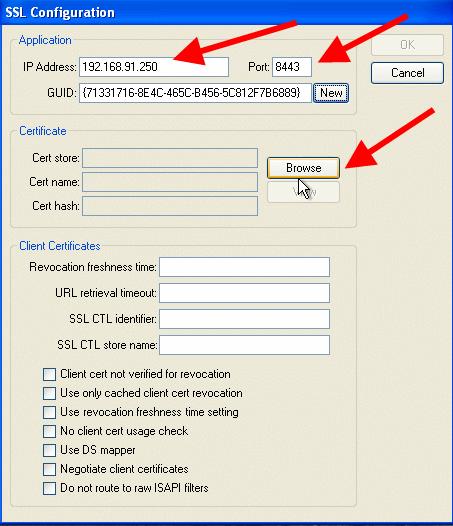 |
Figure 4 - SSL configuration
Select this certificate and click on "Apply" (Figure 5). You can leave other fields unchanged and finally click on "OK".
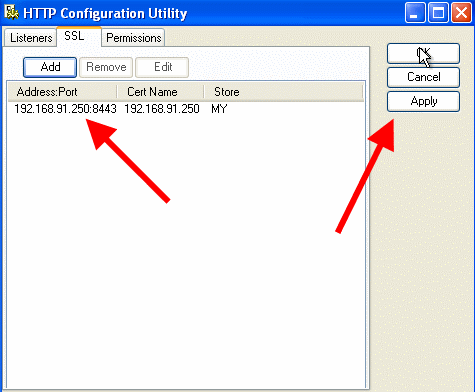 |
Figure 5 - HTTP configuration utility
Then you need to install root certificate so click on "Install Certificate" in "officesms" (Figure 6).
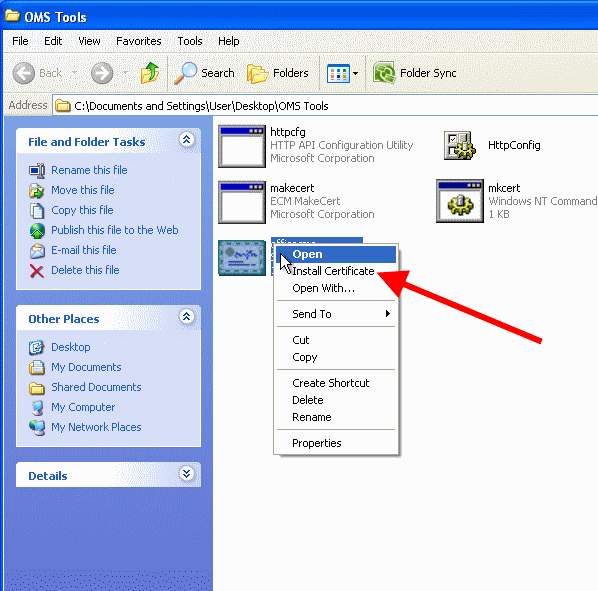 |
Figure 6 - Install root certificate
Step 2. Configure Ozeki NG SMS Gateway
Now start the configuration interface of Ozeki NG SMS Gateway. First you need to login with your username and password. Then you need to create a new user in the SMS gateway (Outlook Mobile Service User). To do this, click on "Add new user or application" (Figure 7).
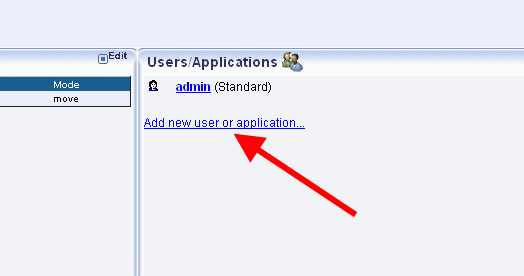 |
Figure 7 - Add new user or application
Select "Outlook Mobile Service" and click on "Install" next to it (Figure 8).
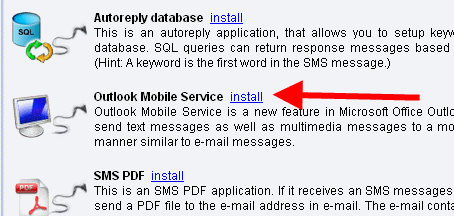 |
Figure 8 - Install OMS
Next provide an application name for this user: in our example it is "Ozeki_OMS" (Figure 9).
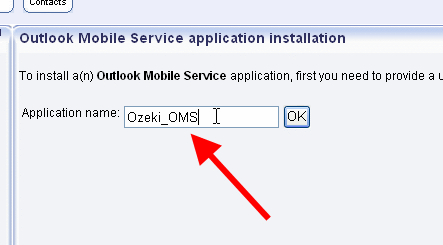 |
Figure 9 - Provide a name
Click on "OK" twice.
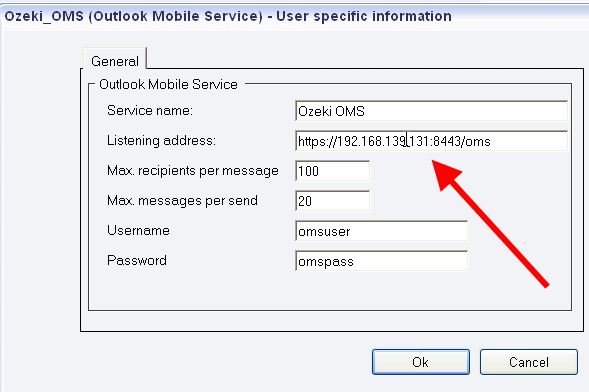
On the left hand side, "OMS
settings" appears. Click on it and provide "Listening Address" (Figure 10):
https://<HOST>:<PORT>/<PATH> |
|
Figure 10 - Listening address
In our example it is the following:
"https://192.168.139.131:8443/oms". If it is done, click on "OK".
If you click on "Events" on the left side of the interface,
you can see the provided address.
Step 3. Configure MS Outlook 2010
In MS Outlook 2010 you need to create a new mobile service account. To do so, start MS Outlook 2010 and go to "File" menu then click on "Account Settings" (Figure 11).
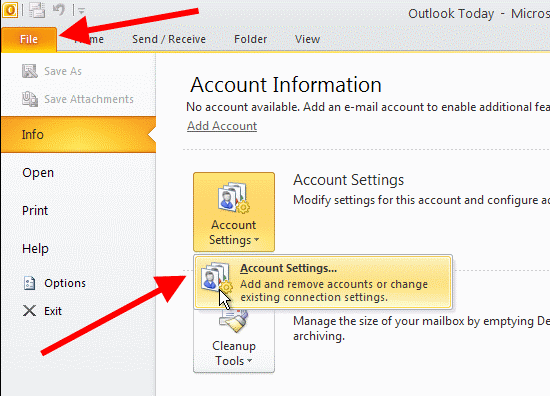 |
Figure 11 - Account settings
"Account Settings" window appears and click on "New" option on "E-mail" tab (Figure 12).
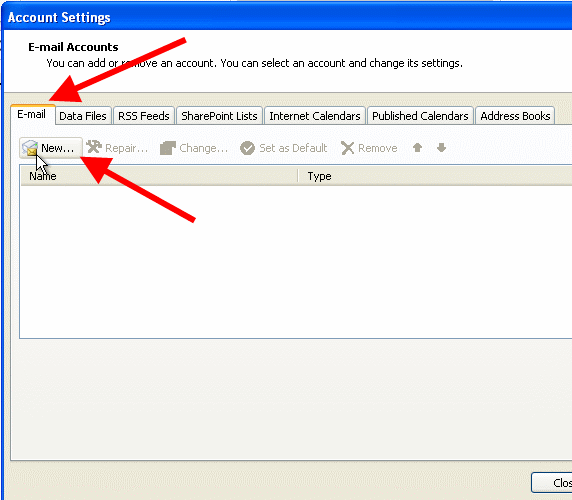 |
Figure 12 - New account
In the appeared "Add New Account" window select "Text Messaging" option and click on "Next" (Figure 13).
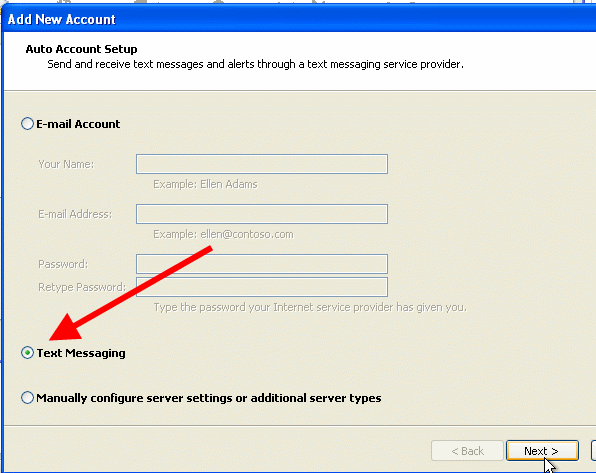 |
Figure 13 - Text messaging
In the next window provide the "Service Provider URL", your "User ID" and your password (Figure 14).
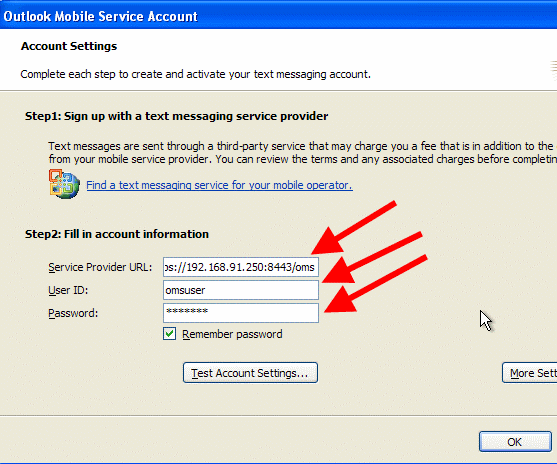 |
Figure 14 - Account information
After you have provided the necessary data click on "More Settings" (Figure 15).
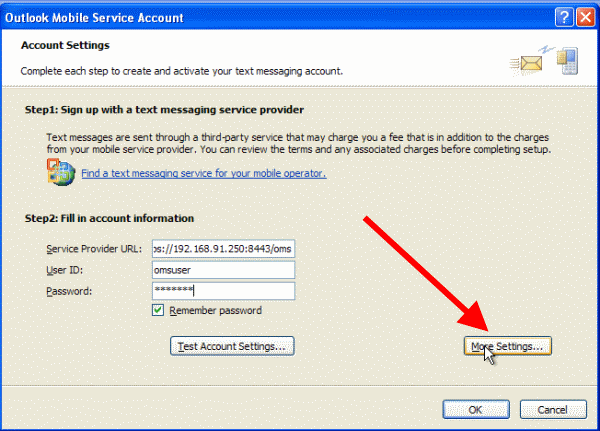 |
Figure 15 - More settings
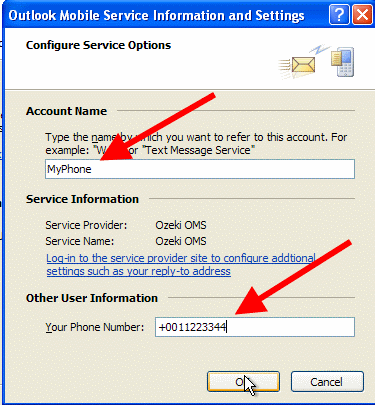
Now provide a name by which you wish to refer to this account. In our example it is "MyPhone". Then specify your phone number and click on "OK" (Figure 16).
|
Figure 16 - Configure service options
Step 4. Test the system
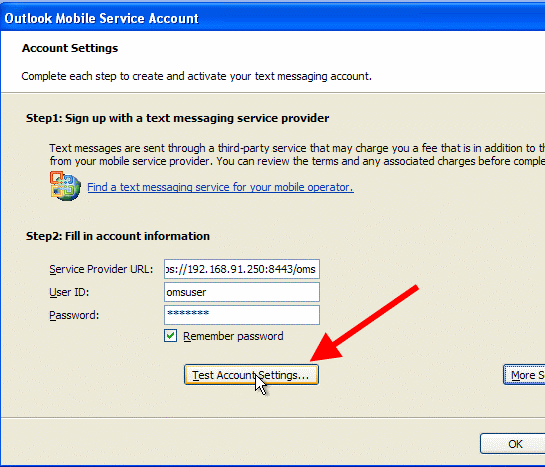
By clicking on "Test Account Settings" a test message can be sent to the predefined phone number (Figure 17).
|
Figure 17 - Test account settings
If you have done your account settings properly a window will notify you about this fact. If you click on "Yes" on this window a test message will be sent to your mobile phone (Figure 18).
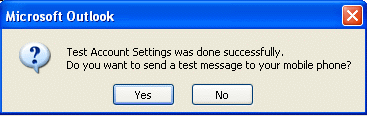 |
Figure 18 - Test the settings
After the configuration click on "Finish" and close MS Outlook
2010.
If you take a look at the "Outbox" folder of Ozeki NG SMS Gateway
you can see that a test message has been sent out (Figure 19).
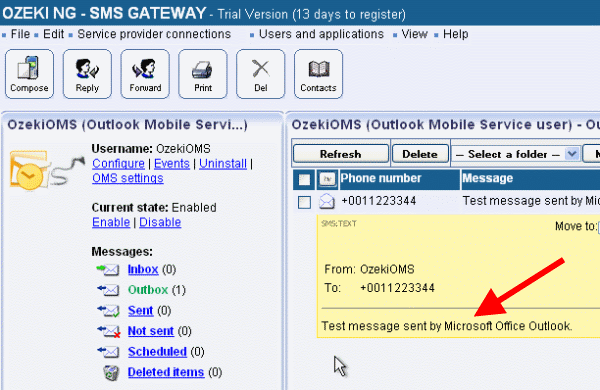 |
Figure 19 - Sent message in Ozeki NG SMS Gateway
Conclusion for MS Outlook 2010 SMS solution
MS Outlook 2010 with Ozeki NG SMS Gateway is the best solution if you wish to improve corporate communication and ensure availability. With this solution you can simplify corporate messaging by forwarding important e-mail messages or calendar entries from Outlook to mobile phones as SMS messages. As SMS technology is simple but very effective, the implementation of it will result in considerable time saving and reduce IT costs. With this solution you can build a stable SMS system based on Ozeki NG SMS Gateway and you will get high quality service.
- You can download Ozeki NG SMS Gateway on the product page >>>
- GSM modem vs IP SMS connection >>>
- SMS solutions for businesses >>>
More information
- How to send and receive SMS in MS Exchange 2019
- How to implement SMS in MS Exchange 2007
- Configure notification SMS in MS Exchange 2010
- MS Exchange 2013/2016
- How to implement MS Outlook 2007 with SMS
- What is the best way to send SMS in Windows mail clients
- How to implement notification SMS in MS Outlook 2010
- How to connect to Gmail to SMS service
- Configure notification SMS from Twitter