

 Solutions
  Applications
  Industries
  Products
  Contact
  Sign in
| Video: |  |
Use Twitter with your phone (part 1/2, configure your modem) |
| Video: | |
Use Twitter with your phone (part 2/2, configure your system) |
Use Twitter with your phone (part 1/2, configure your modem)
Use Twitter with your phone (part 2/2, configure your system)
Introduction
Twitter functions as a social network and micro-blogging service that
allows to communicate and stay connected with important people. In case
of companies there is a great possibility to use Twitter as a marketing tool and
to keep in touch with their customers and business partners.
Practically, it means that you can "tweet" (update) any information about your
company, products or services in Twitter. Your customers or business partners
can subscribe for RSS feeds and in this
way they can always be updated about all the information and latest news on
your company. This solution allows them to get the latest information and
updates on your services or products they are interested
in. Now there is a possibility to further increase these functions of Twitter
with SMS technology. With this SMS functionality added to your IT system,
you can ensure that all the important updates and news about the selected topics
and issues will be sent to cellphones as an SMS message in real time.
In this way you can be up-to-date and competitive by using this modern
technology.
To add SMS functionality to Twitter you need to install an SMS gateway on your
computer such as Ozeki NG SMS Gateway. This
software product will provide the SMS functionality that you need to send and
receive SMS messages in your IT system to mobile phones. To achieve this
function, you just need to create a new RSS user in the SMS gateway and setup a
Twitter feed in it. It is just simple but very effective. With the
implementation of this solution you can totally ensure availability and increase
the efficiency of this service. This article will provide you further
information on the prerequisites and the configuration of this solution.
System requirements
If you wish to setup this application you need to establish a connection
between your system and a mobile network. You can choose from two options: Internet connection
or wireless connection (when you attach a GSM phone or GSM modem to your computer). If you visit
the following website you can decide easily
which solution is the best for you: Internet based SMS
connections vs. GSM modem based (wireless) SMS connections. You will need different tools for this application
on the basis which solution you chose.
Requirements to connect your system to the Mobile network via the Internet
The following tools will be necessary if you wish to establish a connection between your system and an SMS service provider:
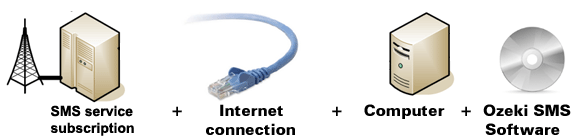
Figure 1/a - Requirements for IP SMS connectivity
You will need an SMS service provider who will be able to reach mobile phones of the
selected area. To help you find a provider who can provide SMS service via the Internet, we have
collected some providers on the following website: SMPP SMS Service providers. After you
have chosen a provider and purchased its service you will get connection parameters and
with these parameters you can set Ozeki NG SMS Gateway software according to your needs.
Requirements to wireless connection to the Mobile network
To establish wireless connection between your system and the GSM modem, you will need a GSM modem/ GSM phone and with a data cable you can connect it to your computer. In this way your Ozeki NG SMS Gateway software can handle the phone and the software can manage messaging wirelessly. The following tools will be necessary if you wish to establish this connection method:
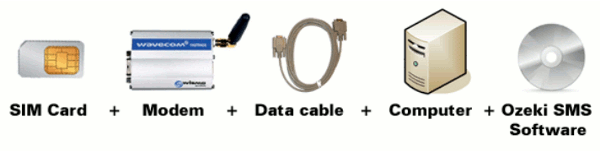
Figure 1/b - Requirements for wireless connectivity
Checklist for GSM modem (wireless) connection: |
SIM Card - You can purchase a SIM Card from your local mobile network service provider.* |
|
Modem - Use a Wavecom, Siemens or Multitech modem. |
|
Data cable - Comes with the modem |
|
Computer - Recommended: Intel P4 3Ghz, 2GB RAM, 500Mb HDD, Windows OS |
|
Ozeki NG SMS Gateway - Download it from http://www.sms-integration.com |
* The cost of an SMS message is determined by the price plan you have chosen when you have purchased the SIM card from your GSM mobile network operator.

| Ozeki NG SMS Gateway can be obtained by opening the download page: Download Ozeki NG SMS Gateway! |
How Twitter SMS works
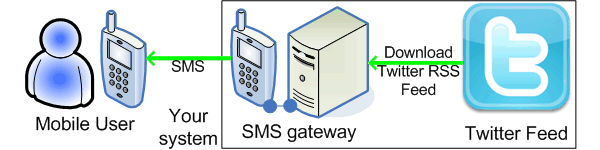
Figure 2 presents how your SMS system will work after configuration: To send SMS messages from Twitter, first you need to configure your Ozeki NG SMS Gateway to check your predefined topics on Twitter periodically. You can set the frequency of these checkings. If there is a new web update on any of your predefined issues or topics Ozeki NG SMS Gateway will download the RSS feed of this topic. It processes the information and finally sends a message about the update to a given mobile phone.
|
Figure 2 - Twitter SMS solution with Ozeki NG SMS Gateway
Ozeki NG SMS Gateway forwards messages to the mobile network either with the help of a GSM modem attached to your PC with a data cable or it connects directly to the SMS center of the mobile service provider to send out the messages to mobile phones.
How to configure Twitter SMS
To receive updates from Twitter you need to configure Ozeki NG SMS Gateway. To use this solution properly and efficiently, please follow the steps of our guide and watch this video tutorial.
| Video: |  |
Use Twitter with your phone (How to configure your system) |
First log into Ozeki NG SMS Gateway with your username and password (Figure 3).
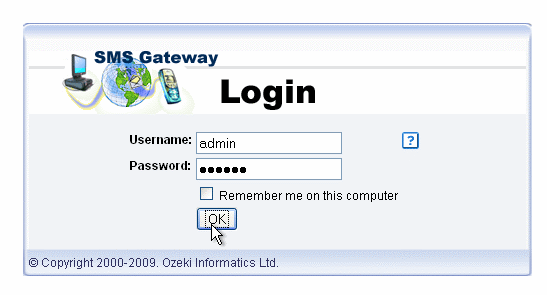 |
Figure 3 - Log into Ozeki NG SMS Gateway
Click on "Add new user or application" option (Figure 4).
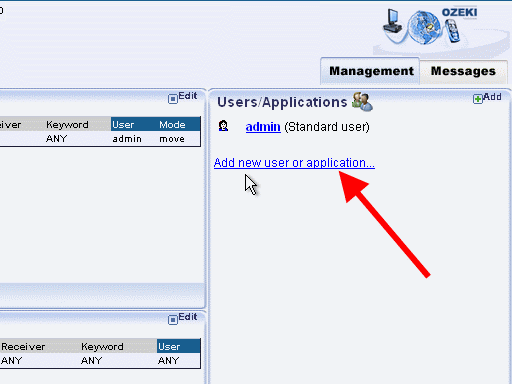 |
Figure 4 - Add new user
Select "RSS user interface" from the list and click on "Install" next to it (Figure 5). This user will read RSS feeds and send their content as SMS.
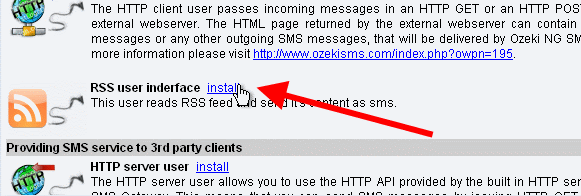 |
Figure 5 - Install RSS user
Next, provide a name for this new user. In our example it is "TwitterSms" (Figure 6).
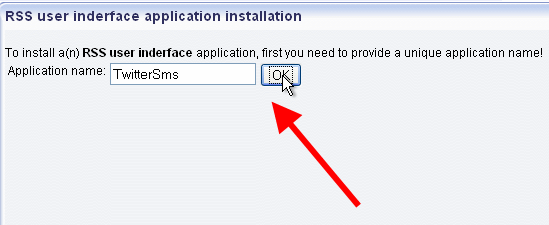 |
Figure 6 - Provide a name
In "Logging" tab you can leave the default settings unchanged and click on "OK" (Figure 7).
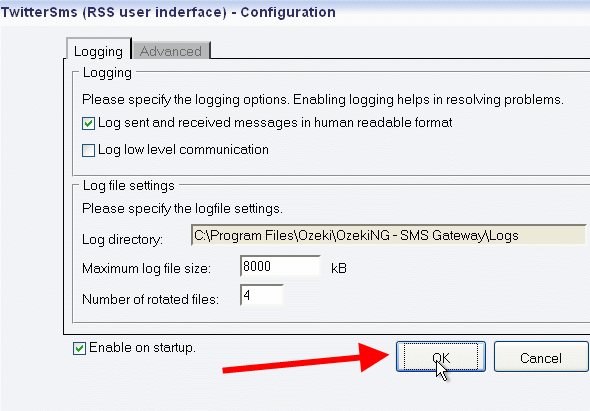 |
Figure 7 - Logging tab
If you wish to setup a Twitter feed in Ozeki NG SMS Gateway, click on "RSS to SMS settings" option (Figure 8).
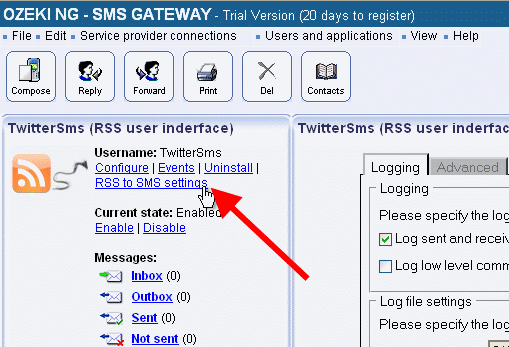 |
Figure 8 - RSS to SMS settings
Then start Twitter at twitter.com and select a topic or topics you wish to be informed about in SMS by clicking on it (Figure 9).
|
|
Figure 9 - Twitter.com
After this, if you have not subscribed to the tweeds of the selected topic, subscribe to it now (Figure 10).
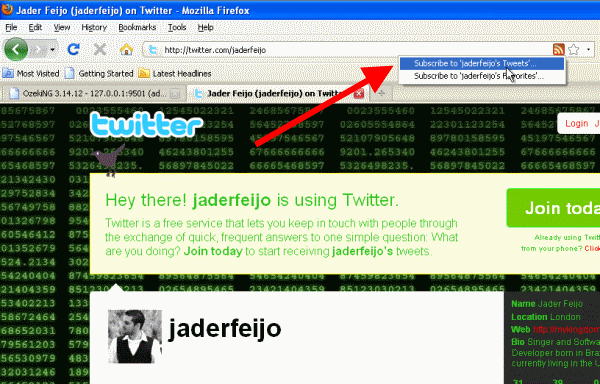 |
Figure 10 - Subscribe to RSS feed
Now copy the URL of your selected topic (Figure 11).
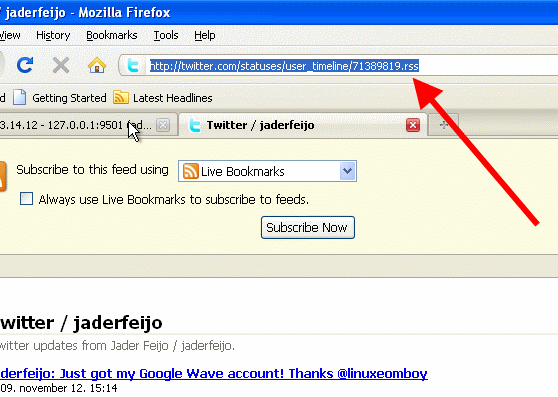 |
Figure 11 - Copy the URL
Then paste the URL into "RSS url" field of Ozeki NG SMS Gateway (Figure 12).
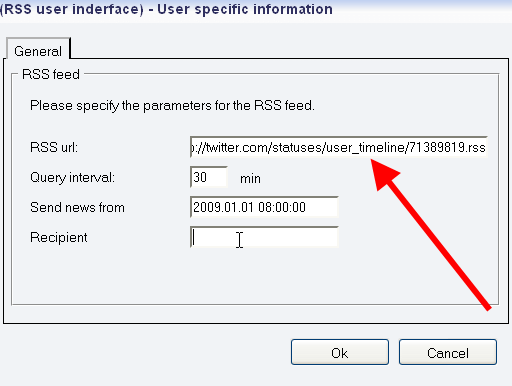 |
Figure 12 - Paste the URL
Finally, you need to provide the recipient of SMS messages (Figure 13).
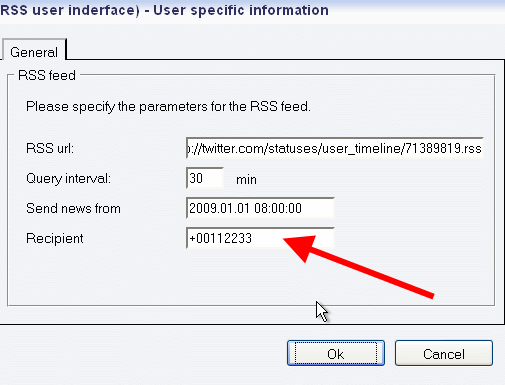 |
Figure 13 - Setup a recipient
If you click on "Events" in Ozeki NG SMS Gateway you can inform about the sent messages (Figure 14).
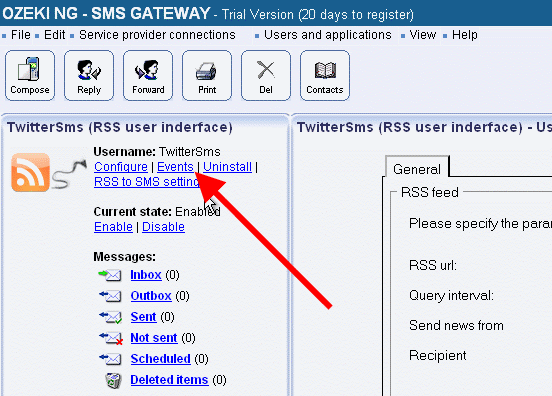 |
Figure 14 - Events
If you take a look at the "Outbox" of the user, you can see the sent messages (Figure 15).
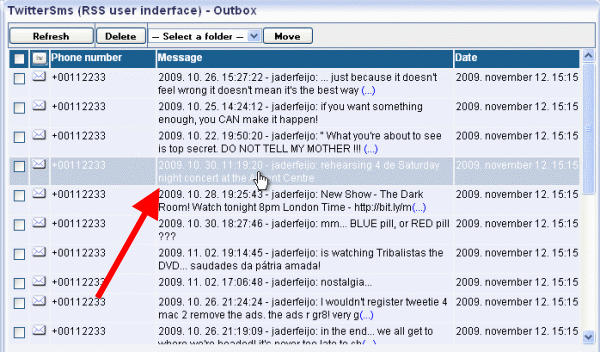 |
Figure 15 - Sent messages
Conclusion for Twitter SMS
It is the best solution if you use Ozeki NG SMS Gateway to forward web updates from Twitter to mobile phones. With SMS functionality you can be sure that all important information about the selected topics will be forwarded via SMS at any time and anywhere. With the implementation of Ozeki NG SMS Gateway you can save valuable time and money while you get a well-functioning and effective solution.
- You can download Ozeki NG SMS Gateway on product pages >>>
- GSM modem vs IP SMS connection page >>>
- SMS solutions for businesses page >>>
More information
- How to send and receive SMS in MS Exchange 2019
- How to implement SMS in MS Exchange 2007
- Configure notification SMS in MS Exchange 2010
- MS Exchange 2013/2016
- How to implement MS Outlook 2007 with SMS
- What is the best way to send SMS in Windows mail clients
- How to implement notification SMS in MS Outlook 2010
- How to connect to Gmail to SMS service
- Configure notification SMS from Twitter