

How to send a picture from a browser using copy paste
Discover an easy way to share images in Ozeki Chat with our simple copy and paste method. Whether you're a beginner or seasoned user, this guide provides step-by-step instructions and a helpful video tutorial, ensuring a hassle-free process. From accessing your account to delivering the image, every action is clearly outlined, letting you to enhance your messaging experience effortlessly. With Ozeki Chat's intuitive interface and efficient features, communication becomes smoother and more enjoyable.
How to send a picture from a browser using copy paste (Plain instructions)
To send a picture from a browser using copy paste
- Access your Ozeki Chat account
- Open Chat conversation with your contact
- Copy the image you wish to share
- Paste the image into the conversation
- Let the picture load
- Send the image
- Wait for the message notification
- Use the picture
Use copy and paste to send a picture in Ozeki Chat (Video tutorial)
In this video tutorial, you will discover an easy way to send pictures in Ozeki Chat using the simple copy and paste method. Follow the given instructions and complete the process without any difficulites. By learning these steps, provides you the knowledge to send pictures in the future anytime you need to.
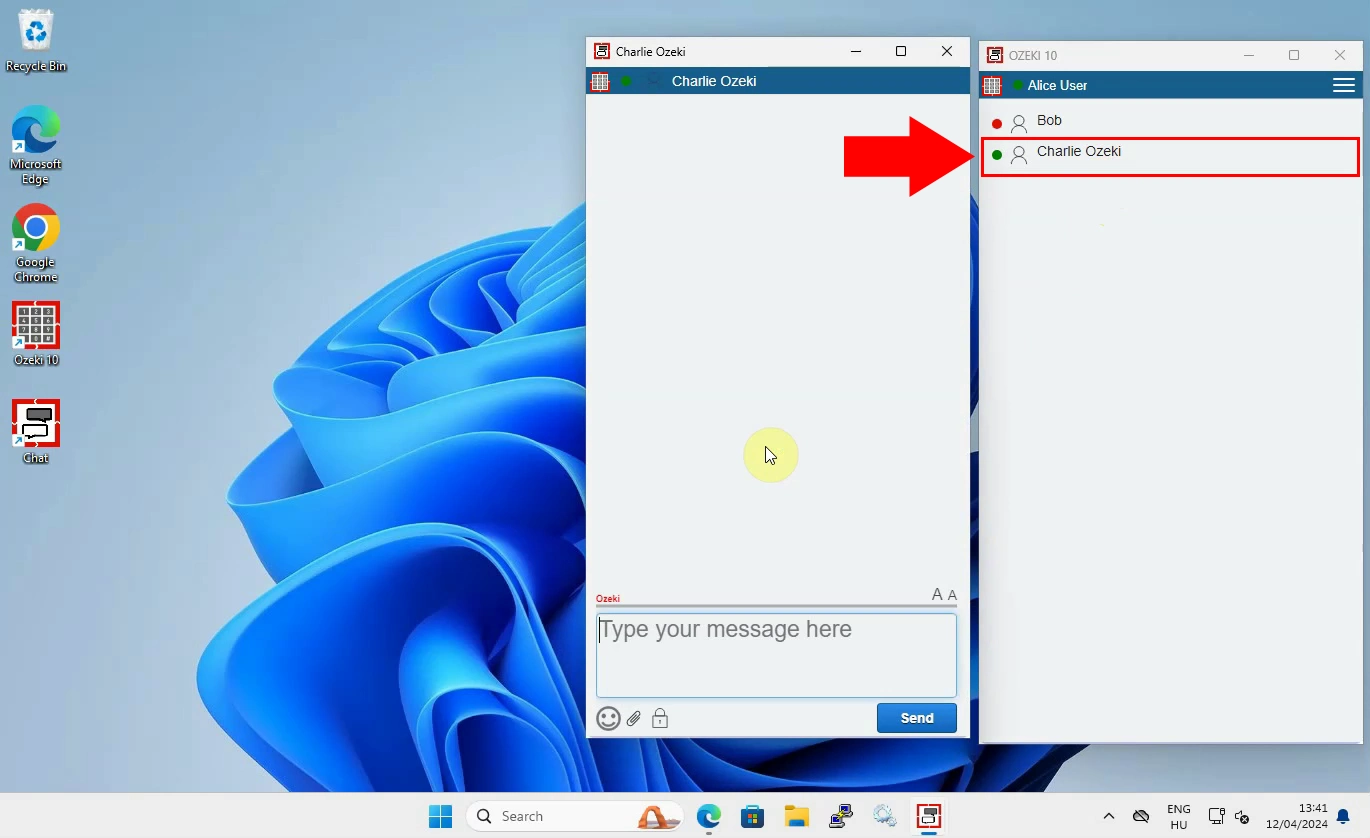
As the first step, you have to access your Ozeki Chat account through the Ozeki Chat desktop application on your Windows device. If you have not installed the Ozeki application yet, download it from the Ozeki website's download page. Once the installation and download process is ready, log into your chat account, by entering your login information to the certain cells. After logging into your profile, open the chat conversation (Figure 1) with the desired chat contact, you wish to send the picture.
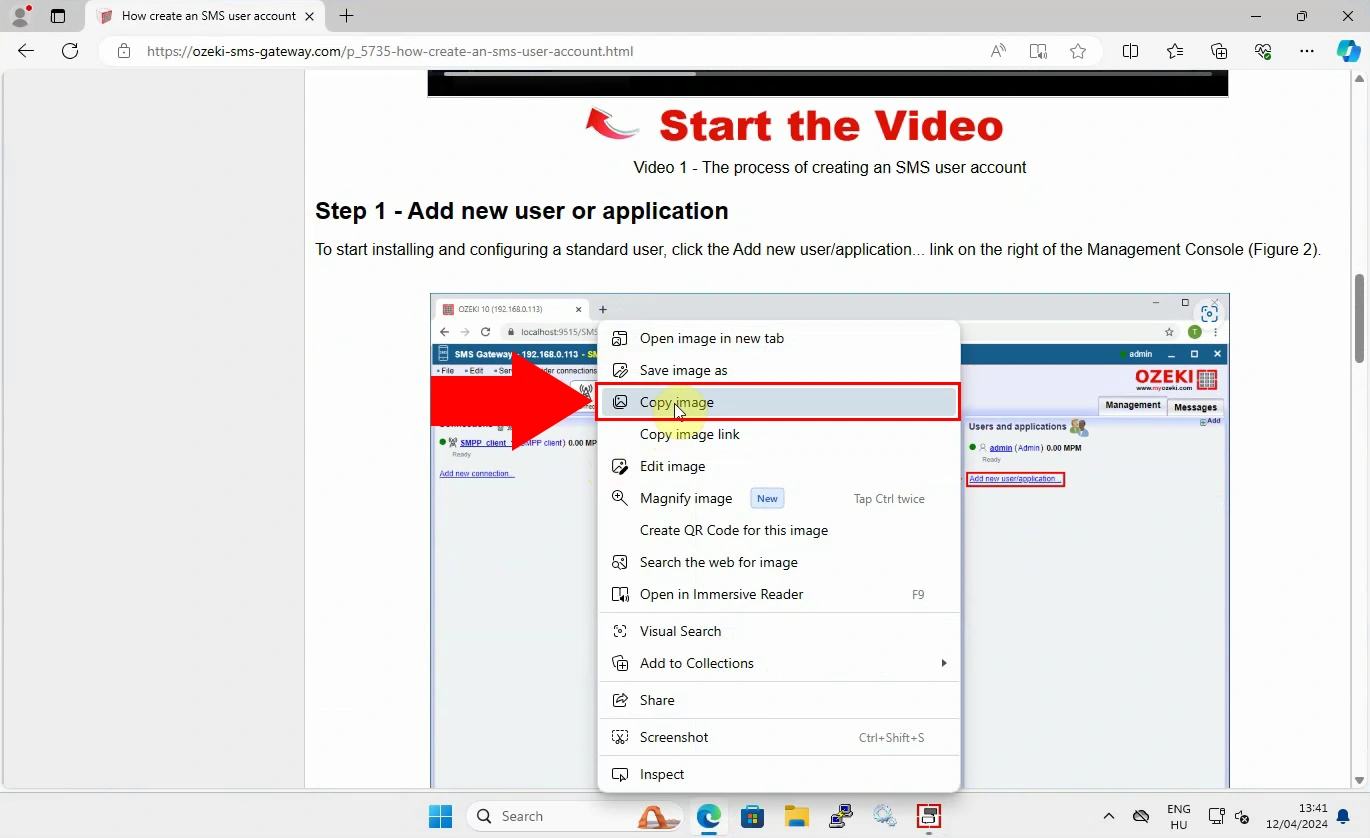
Once you have entered into your Ozeki profile and opened the conversation, load the picture's page where you can find it. Copy the image by clicking on it with right click, then choosing the "Copy image" option (Figure 2) from the drop-down list that appears on your screen as you click on the image. Choose the option that has been mentioned previously to copy the picture on the clipboard.
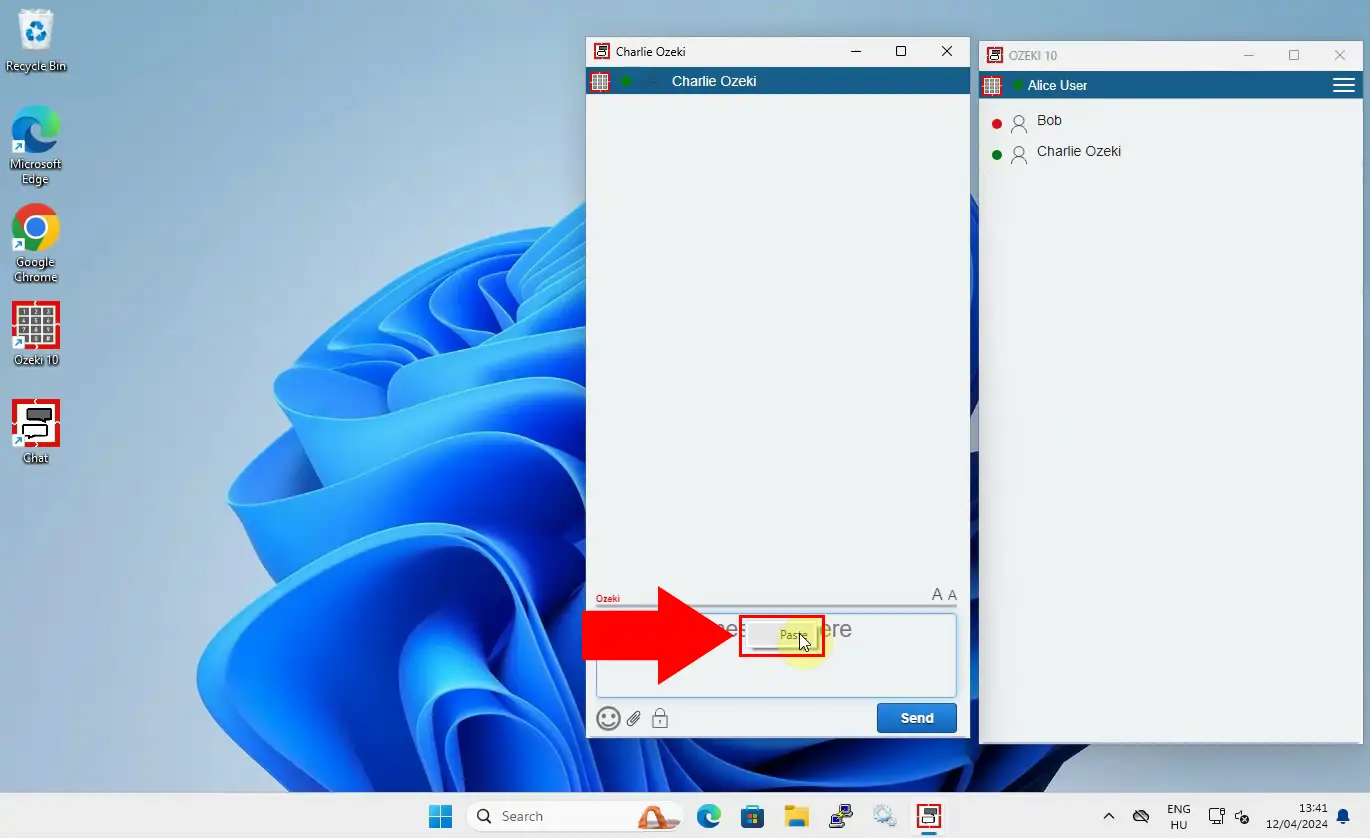
Load the Ozeki chat conversation again, and paste the image by clicking with right mouse button in the chat message field, then choose the "Paste" from the given options. (Figure 3) This motion will paste the copied picture from the clipboard to the chat conversation and make it ready for sending it to your recipient.
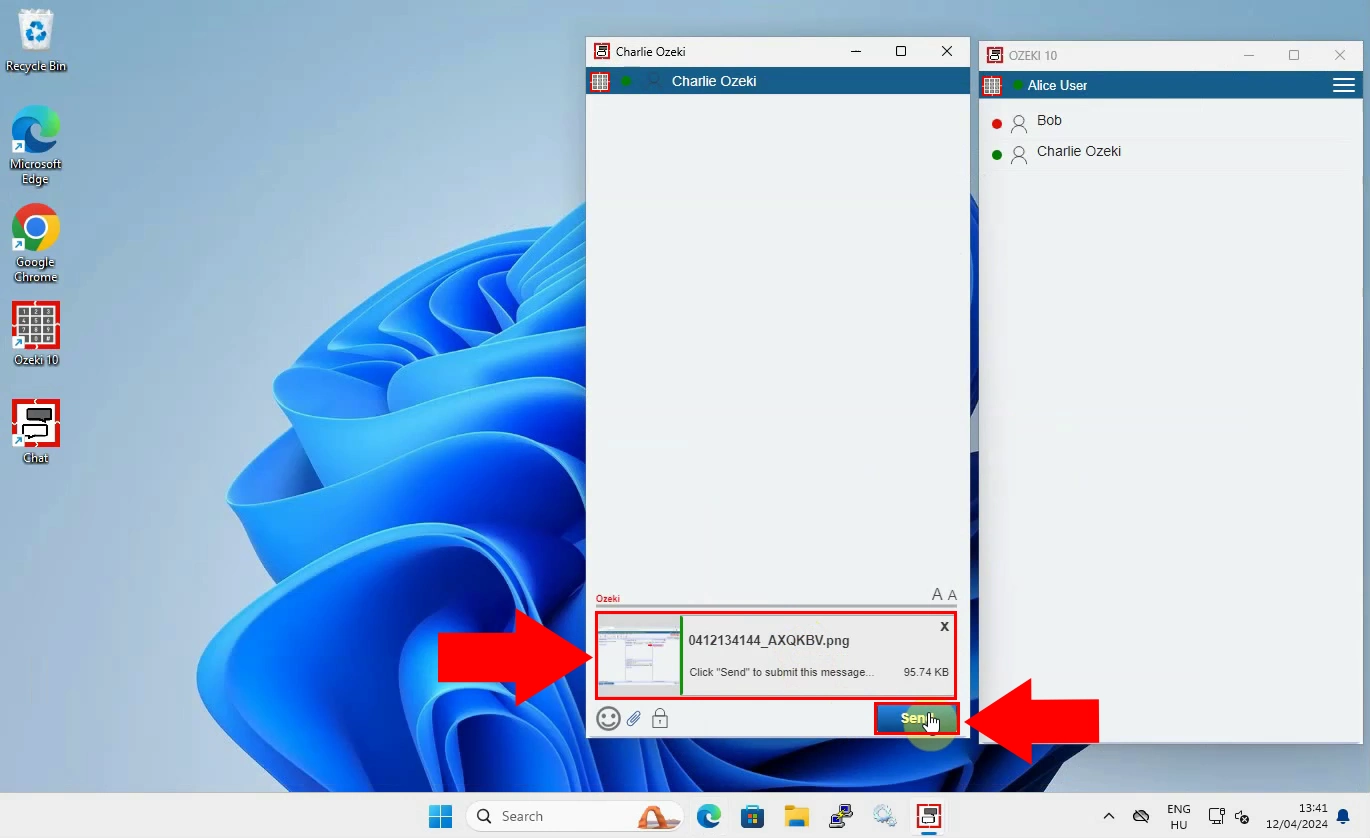
Wait for uploading the whole image to the chat conversation and make it ready for delivering to the recipient. This ensures that the image is properly transferred. Once the image have been loaded, click on the "Send" button to start the delivery process. (Figure 4)
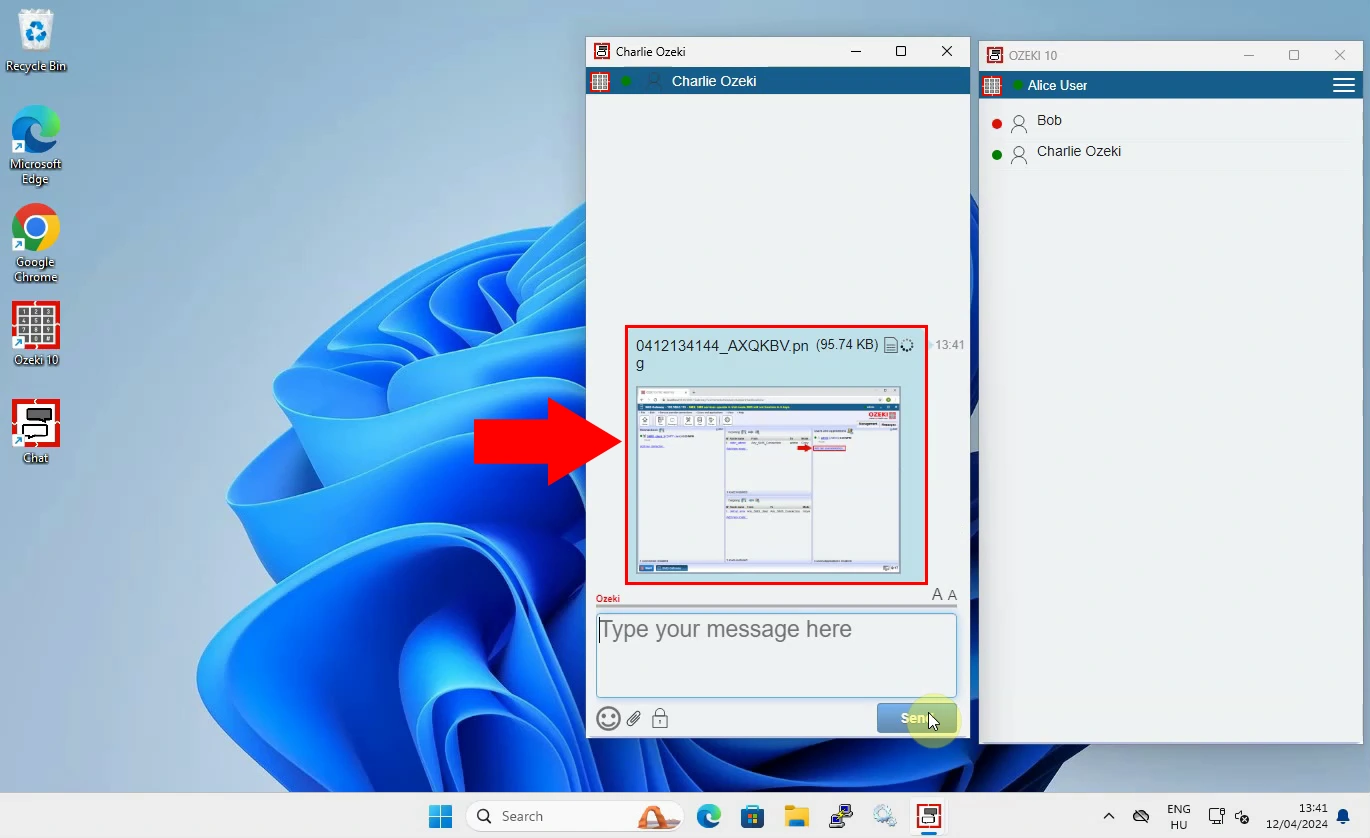
Once the file has been successfully transmitted, it will appear as a file message within the chat conversation with your recipient. (Figure 5) At this point, your recipient can access the image. They can open it in larger size, download it, and save it for further usage. With Ozeki Chat's user-friendly interface, sharing images becomes easy, enabling you to improve your communications and workflows.
FAQs
Can I use the copy and paste method to send pictures from any browser?
Yes, you can use the copy and paste method to send pictures from any browser that supports copying and pasting images.
Do I need to download any additional software to use the copy and paste method in Ozeki Chat?
No, you do not need to download any additional software. The copy and paste method is built into the Ozeki Chat application.
What file formats are supported when using the copy and paste method to send pictures in Ozeki Chat?
The copy and paste method supports common image file formats such as JPEG, PNG, GIF, and BMP.
Is there a size limit for the pictures I can send using the copy and paste method?
Ozeki Chat does not impose a specific size limit for pictures sent using the copy and paste method. However, larger file sizes may take longer to upload and send depending on your internet connection speed.
Summary
Mastering the copy and paste method for sending pictures in Ozeki Chat revolutionizes communication, offering a seamless and efficient way to share images with contacts. Whether following the clear instructions provided or watching the accompanying video tutorial, users can easily navigate the process, enhancing their messaging experience. With Ozeki Chat's user-friendly interface and features, communication becomes more engaging and productive.
More information
- How to start the Windows chat client and login
- How to select a chat and switch between friends
- How to send chat message in the Ozeki Windows Chat client
- How to send an emoji in the Ozeki Windows Chat client
- How to send a word .doc file from Windows using browse icon
- How to send a word .doc from file explorer using drag and drop
- How to send a picture using Windows snipping tool and copy paste
- How to send a picture from a browser using copy paste
- How to download and open a received word document
- Windows chat client specific features
- How to uninstall the Windows chat client